Laptop speakers can be surprisingly loud when you first buy a new computer or laptop. But after some time, you may notice that the sound is not as stronger as it was before.
Maybe the laptop speaker volume is already at 100%, but YouTube videos are still difficult to hear. Or perhaps the voices sound quieter than the music. Sometimes the problem my be caused by a simple Windows setting. In other cases, dust has blocked speaker openings or a hardware issue could be responsible.
Before assuming that your laptop speakers are failing, try some of the following fixes.
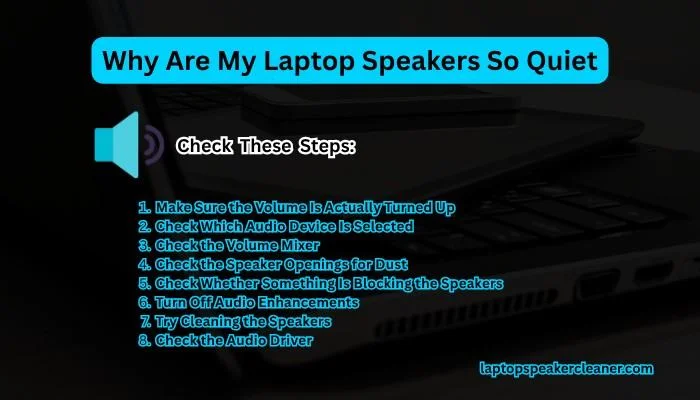
Table of Contents
1. Make Sure the Volume Is Actually Turned Up
It sounds obvious, but check the system volume before doing anything complicated.
Windows has many different volume controls. Your laptop’s main volume can be high while the individual application volume might be low.
Check:
- Windows system volume
- The volume inside the individual application
- Windows Volume Mixer
- The volume of the video or music player itself
For example, if Windows volume is at 100% but YouTube volume is turned down, increasing the Windows volume will not solve the problem.
Play a song or video while checking the volume of your system so you can immediately hear whether the level changes.
2. Check Which Audio Device Is Selected
Your laptop may not be using its built-in speakers provided by the company.
If you have recently connected Bluetooth headphones, a monitor, TV, USB audio device or another speaker, Windows may have switched to the audio output automatically.
Open your sound settings and check the selected output device in your computer.
Choose the laptop’s built-in speakers and play some audio or video again.
This is a best process of checking if your laptop speakers suddenly became quiet after connecting another device.
3. Check the Volume Mixer
Windows allows different applications to have different volume levels to control independently.
So you might have:
- System volume at 100%
- Browser at 30%
- Media player at 50%
- Another application at 100%
If only one application sounds quiet, open the Windows Volume Mixer and check for its individual volume settings.
This can save you from changing drivers or cleaning the laptop speakers when the actual problem is simply an application volume setting.
4. Check the Speaker Openings for Dust
If everything in your system sound settings looks normal, take a look at the physical speakers.
Dust and small particles can collect around your laptop speaker grilles over time. Depending on the design of your laptop, the speakers may be located above the keyboard, beside it or underneath the laptop.
A blocked laptop speaker grille can make the sound weaker or less clear.
Turn off your laptop and carefully clean visible dust with a soft, dry microfiber cloth or a soft brush.
Do not push or pull the speaker openings with a pin, toothpick or other sharp object. You could damage the laptop speaker or push debris deeper inside.
5. Check Whether Something Is Blocking the Speakers
The surface underneath the laptop can also affect how the speakers sound.
This is especially important for the laptops that have downward-facing speakers.
If you are using the laptop on a:
- Bed
- Blanket
- Sofa
- Pillow
- Soft mat
The laptop speaker openings may be partially covered.
Move your laptop onto a hard, flat surface and test the sound again.
If the sound suddenly becomes louder or clearer than before, the speakers may have been partially blocked rather than faulty.
6. Turn Off Audio Enhancements
Audio enhancements can also change the way the laptop speakers sound.
They are designed to improve the audio, but the result is not always better. Depending on your laptop and audio driver, an enhancement tool can sometimes make the sound quieter, less natural or distorted.
Try temporarily turning off the audio enhancements and play the same audio again.
If the laptop speakers become louder or clearer, you can experiment with the available sound settings and decide which configuration sounds is best for your laptop.
7. Try Cleaning the Speakers
If your laptop has been used for a long time without cleaning, dust may be the problem.
Start with a gentle physical cleaning around the laptop speaker grille.
For small particles or possible moisture affecting the laptop speaker, you can also try a speaker cleaning sound.
The laptop speaker cleaner uses audio tones designed to make the laptop speaker move and vibrate. This may help to force remove small particles or moisture that could be affecting the sound.
When trying a speaker dust cleaning sound, start at a moderate volume. There is no need to immediately run the laptop speakers at maximum volume.
After the cleaning cycle, play a normal audio and compare it with how the speakers sounded before.
8. Check the Audio Driver
If the speaker volume remains unusually low after checking the settings and cleaning the laptop speaker area, the audio driver could be responsible.
An audio driver allows Windows to communicate with your laptop’s audio hardware. Problems with the driver can sometimes cause low volume, distortion or even other sound problems.
This is especially worth investigating if:
- The problem started after a Windows update.
- Your speakers suddenly became quiet.
- Other audio problems appeared at the same time.
- Your laptop manufacturer recently released a driver update.
Check your laptop manufacturer’s support page for the latest audio driver updates for your specific model.
What If Only One Speaker Is Quiet?
If one side of your laptop’s speaker sounds quieter than the other, the problem may be more specific than a simple volume setting.
First, check whether your laptop has left/right balance controls and make sure that the balance is centered.
Then you should check the quieter speaker for visible dust or debris.
You can also use a laptop speaker test tool to check each channel separately.
If one speaker remains significantly quieter after cleaning and checking all the settings, there could be a hardware problem with that laptop speaker.
Why Are Laptop Speakers Quiet Even at 100%?
Setting the volume to 100% does not necessarily mean that something is wrong if the speakers still are not very loud.
Laptop speakers are small and have many physical limitations. They are designed for everyday listening rather than producing the same volume as the external speakers.
However, if your laptop speaker sound was louder and has suddenly became quiet, that is different.
A sudden change could point to:
- A Windows setting
- Incorrect output device
- Audio enhancement
- Driver problem
- Dust or debris
- Speaker damage
That is when troubleshooting becomes important.
How Can You Tell Whether It’s a Software or Speaker Problem?
An easy way to narrow it down is by comparing different audio sources.
Try few videos, a music file and a speaker test.
If everything is consistently quiet then check the laptop’s settings and physical speakers.
If only one application is quiet then look at that application’s volume settings.
If the headphones sound is normal while the built-in speakers remain very quiet, the problem is more likely related to the laptop’s built-in speaker system or its configuration.
When Should You Stop Troubleshooting?
If you have checked all the settings, cleaned the laptop speaker area and tested different audio sources but the speakers are still quiet, the issue may be hardware-related.
This is true if the laptop:
- Was recently dropped
- Has been exposed to liquid
- Produces crackling or buzzing
- Has one speaker that produces less sound
- Sounds distorted even at normal volume
At that point, repeatedly increasing the volume or running speaker cleaning sounds is unlikely to solve the underlying problem.
Conclusions:
Quiet laptop speakers do not always mean that the laptop speakers are damaged.
Start with the simple things: check the system volume mixer, confirm the correct output device, turn off audio enhancements and make sure nothing is blocking the laptop speaker openings.
If moisture or dust could be affecting the laptop speakers, gentle cleaning or a speaker cleaning sound may be worth trying. If none of these steps make a difference, look at the audio driver or check whether the laptop speakers may have a hardware problem.
The key is to find out why the speakers are quiet before trying more aggressive fixes.