Have your laptop speakers sound muffled suddenly or started sounding dull, unclear or quieter than before? Maybe music sounds like it is coming from behind a wall, voices are not as clear as they were before or the speakers seem to have lost their sharpness.
A muffled laptop speaker does not always mean that the speaker is damaged. Dust around the speaker grille, moisture, incorrect audio settings, driver problems or even a blocked speaker opening can affect the speaker sound.
The good thing is that many of these problems are easy to check at home going anywhere. Here are nine things that you can try when your laptop speakers sound muffled.
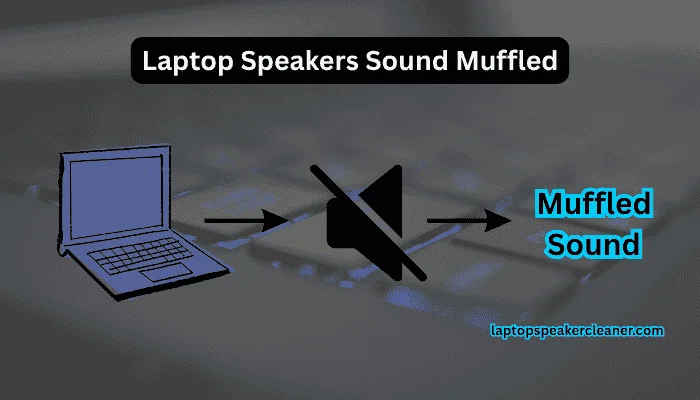
Table of Contents
1. Check the Speaker Grille for Dust
Start with the easiest possibility, look at the speaker openings.
Laptop speakers are usually located above or beside of the keyboard, although some laptop models have speakers underneath the laptop. Over time, dust, hair and tiny dust particles can collect around the grille.
A layer of dirt can interfere with the way the speaker sound comes through the openings. Turn your laptop off and take a close look at the speaker area. If you can see dust or debris, clean the surface gently with a soft, dry microfiber cloth or a soft brush.
Do not push anything into the laptop speaker holes. A sharp object can damage the grille or the speaker.
If the laptop speakers look dusty but the sound is only slightly muffled, cleaning the speaker area may be enough to make a noticeable difference than before.
2. Check Whether the Speakers Are Actually Being Blocked
Think about where you normally use your laptop.
If your laptop has bottom-firing speakers, placing it on a bed, blanket, sofa or other soft surface can partially cover the laptop speaker openings. This can make the speaker sound seem dull or unusually quiet.
Try placing your laptop on a hard, flat surface and play the same audio again. This is a particularly easy thing to overlook because there may be nothing wrong with the laptop speakers themselves.
3. Check Your Laptop’s Volume and Audio Settings
Before assuming that the speakers need cleaning, check the basic sound settings.
On Windows, make sure:
- The correct output device is selected.
- The main volume is not turned down.
- The volume mixer is not reducing the volume of the application you are using.
- Bluetooth headphones or another audio device are not selected as the output.
- Any unusual audio effects are turned off temporarily.
You can also try playing a different song, video or audio.
If only one particular video or song sounds muffled, the problem may be with that recording rather than the laptop speakers.
4. Turn Off Audio Enhancements and Test Again
Windows and some other laptop manufacturers provide audio enhancements designed to change the way speakers sound.
These can sometimes improve the audio quality, but they can also make sound seem unnatural or distorted on certain laptops.
If your laptop speakers suddenly sound muffled, temporarily disable audio enhancements and test the speakers again.
If the sound becomes clearer, you have probably found a setting that was affecting the laptop audio.
You can then experiment with the available audio settings to find the best sound for your laptop.
5. Check for Dust Around the Speaker Openings
Visible dirt is not always the main reason.
Small dust particles can collect around the speaker grille and openings over time, especially if you are regularly using your laptop in dusty environments.
For light dust buildup, gently clean the speaker grille with a clean and soft brush. Follow up with a dry microfiber cloth around the surrounding surface of the speaker.
Avoid spraying any liquid onto the speaker area. Also avoid aggressively blowing air directly into the laptop speaker openings. A strong burst of air can push debris further inside the laptop instead of removing it.
6. Try a Speaker Cleaning Sound
If the speakers are physically clean but still sound muffled, you should try a speaker cleaning sound.
A speaker cleaning sound uses special audio tones to make the speaker move rapidly. The vibration may help eject small particles or moisture that could be affecting the sound.
You can try the laptop speaker cleaner to test this.
Start at a moderate volume rather than immediately playing the speakers at the highest volume. Let the speaker cleaning sound play for a short period, then test your speakers with normal audio.
A cleaning sound is not a repair tool and it can not fix a physically damaged speaker. Think of it as another option to try when the problem may be related to small dust particles or moisture.
7. Check the Laptop After Any Recent Liquid Exposure
Did the sound become muffled after the laptop got wet or a liquid was spilled near it?
If so, moisture could be the main problem. Water or other liquids around the laptop speaker can change the way the speaker vibrates and may cause muffled, distorted or crackling audio.
If a lot of liquid was spilled on the laptop, turn it off and unplug it. Do not use the speakers until the laptop is dry and safe.
For minor moisture around the speaker area, a speaker water removal sound may sometimes help to move remaining moisture. However, it should not be treated as a best solution for serious liquid damage inside the laptop.
8. Update or Reinstall the Audio Driver
If cleaning does not make any difference, the problem may have nothing to do with dust.
Audio drivers control communication between Windows and your laptop’s sound hardware. An audio driver problem can result in unusual, distorted, quiet or muffled audio.
If the problem has started after a Windows update or another system change, check whether an updated audio driver is available from your laptop manufacturer’s support page.
You can also check the Windows Device Manager for problems with the audio device. If other audio problems started at the same time as the muffled sound, a driver or Windows setting becomes more likely.
9. Test the Speakers With Different Audio
Finally, do not judge your laptop speakers using just one song or video.
Try several types of audio:
- A voice recording
- Music
- A video with speech
- A speaker test
- Left and right channel audio, if available
Listen for the same problem across different sources.
If everything sounds muffled, the problem is more likely to be related to the laptop’s speakers, settings or any audio system.
If only one audio or video file or website sounds muffled, the source itself may be the problem.
How to Tell if Your Laptop Speaker Is Actually Damaged
Cleaning and changing settings will not fix a laptop speaker that has suffered physical damage.
You may be dealing with a hardware issue if:
- The speaker keeps crackling at normal volume.
- One speaker is much quieter than the another.
- The sound remains distorted after cleaning and troubleshooting.
- The laptop was recently dropped.
- There was a significant liquid spill.
- The speaker makes unusual noises even when no sound is playing.
If you notice these symptoms, especially after physical damage or liquid exposure, professional inspection may be a better choice than continuing to clean the speaker.
What Should You Try First?
If your laptop speakers sound muffled, do not immediately assume that the speakers need to be replaced.
Try these steps in order:
- Check the laptop speaker openings for dust.
- Put the laptop to a hard, flat surface.
- Check Windows volume and output settings.
- Temporarily disable the audio enhancements.
- Gently clean the laptop speaker grille.
- Try a laptop speaker cleaning sound.
- Consider whether your laptop was recently exposed to moisture.
- Check the audio driver settings.
- Test the laptop speakers with several different audio sources.
For a mild muffled-sound problem, the cause can be surprisingly very simple.
Final Thoughts:
Muffled laptop speakers can be caused by something as simple as dust or a blocked speaker grille but software settings, moisture and hardware problems can also produce similar symptoms.
Start with the easy checkups before assuming that the speakers are damaged. Clean the outside of the laptop speaker area gently, check your audio settings and test the audio again.
If you suspect that small particles or moisture are affecting the laptop speaker, a speaker dust cleaning sound is another option worth trying. Just keep the volume at a medium level and remember that it cannot repair a physically damaged speaker.
Once you have fixed the problem, keeping the laptop speaker area clean and free from dust and moisture can help prevent the same issue from coming back.